Have question on how to report sales and pay taxes? These instructions will guide you through the process. Red arrows in the screenshots show you where the section mentioned is located.
Go To Vendor Management Page
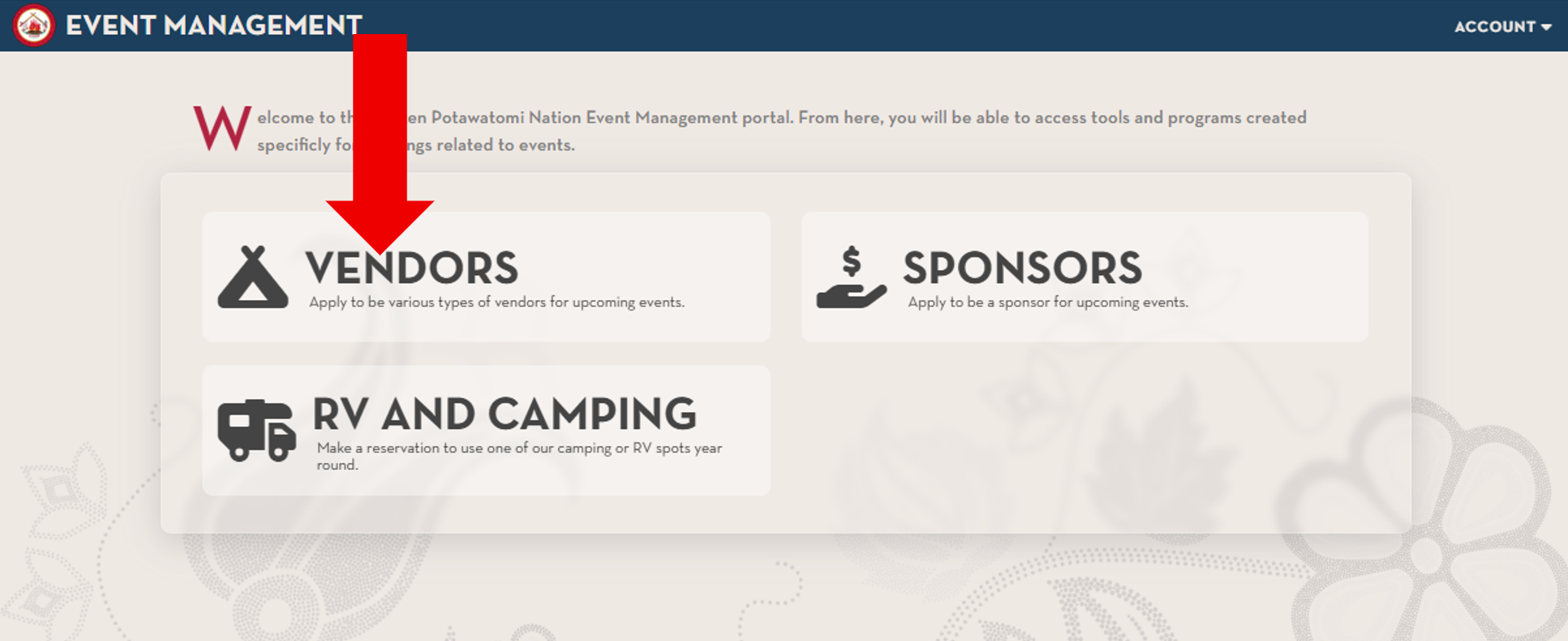
• From the main page, click on the 'Vendors' button.
Open the 'My Events' Tab
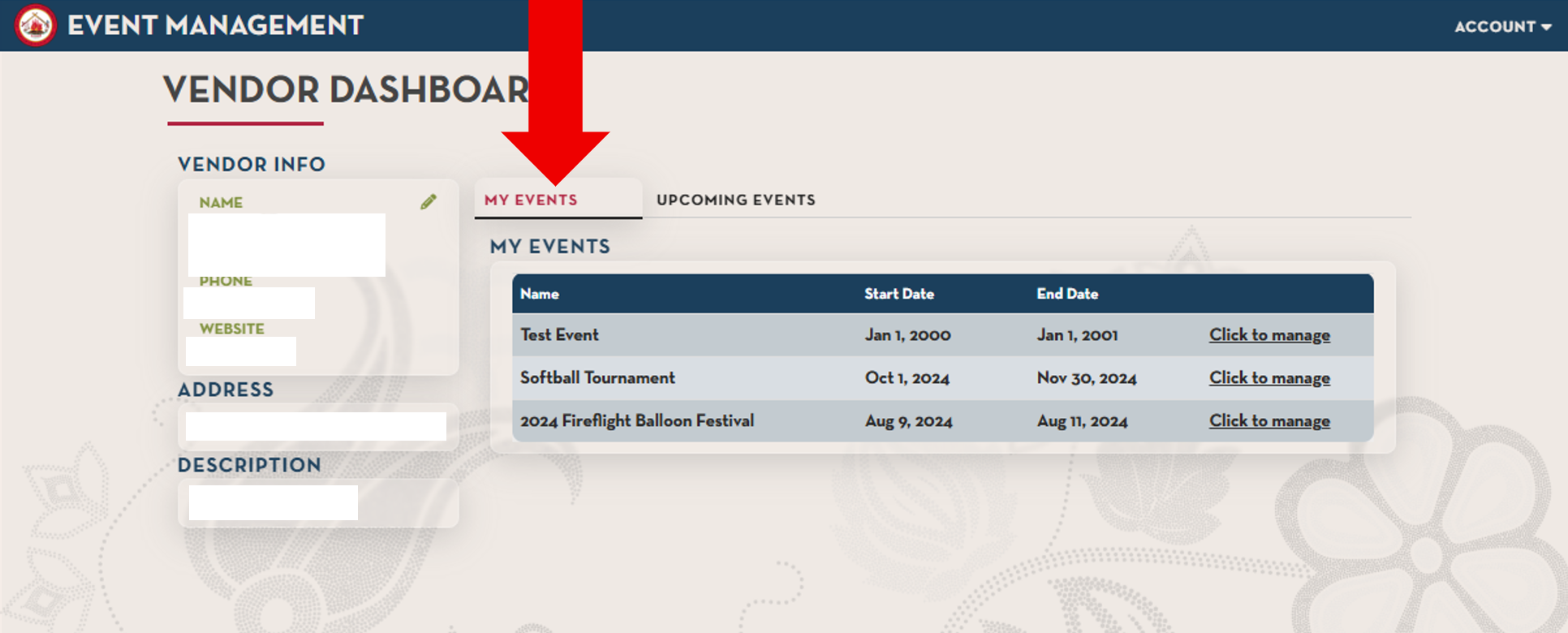
• Once on the Vendor's main page, open the 'My Events' tab.
Go To The Event's Management Page
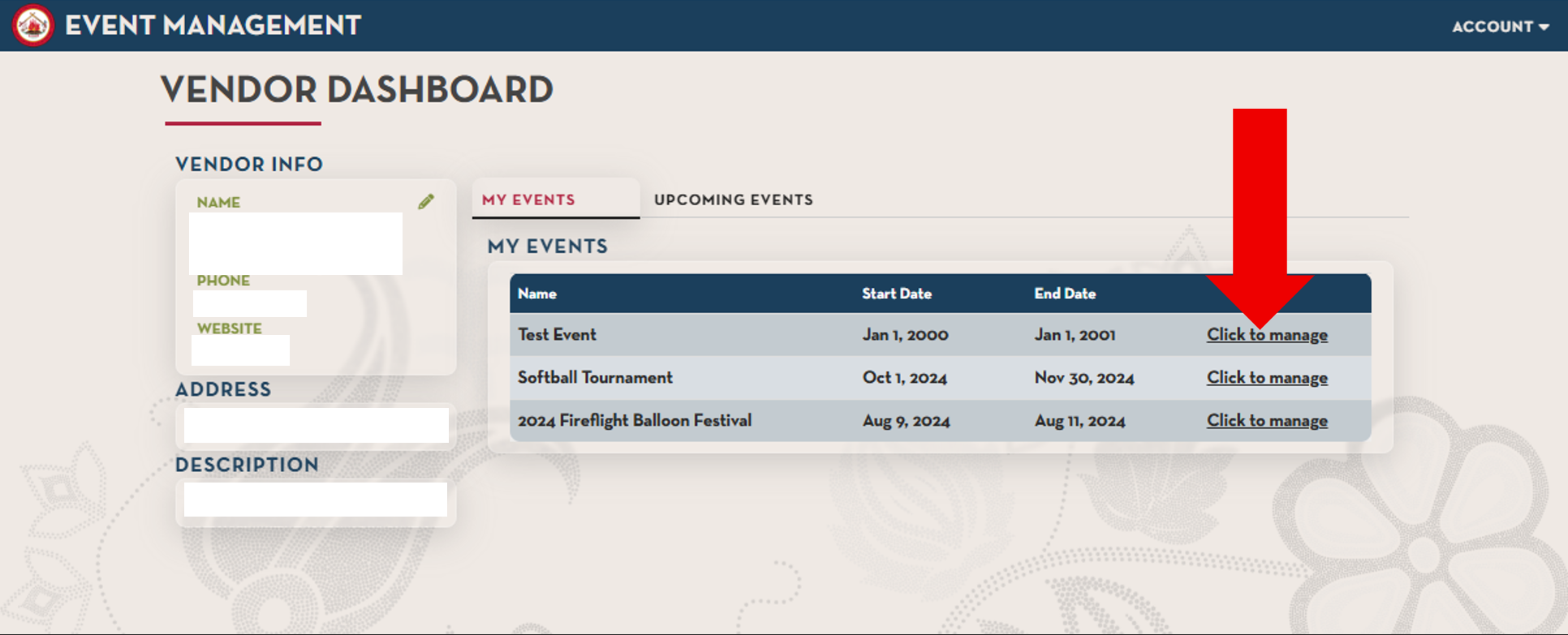
• Find the event you need to update and click on it's row in the list.
Report Sales
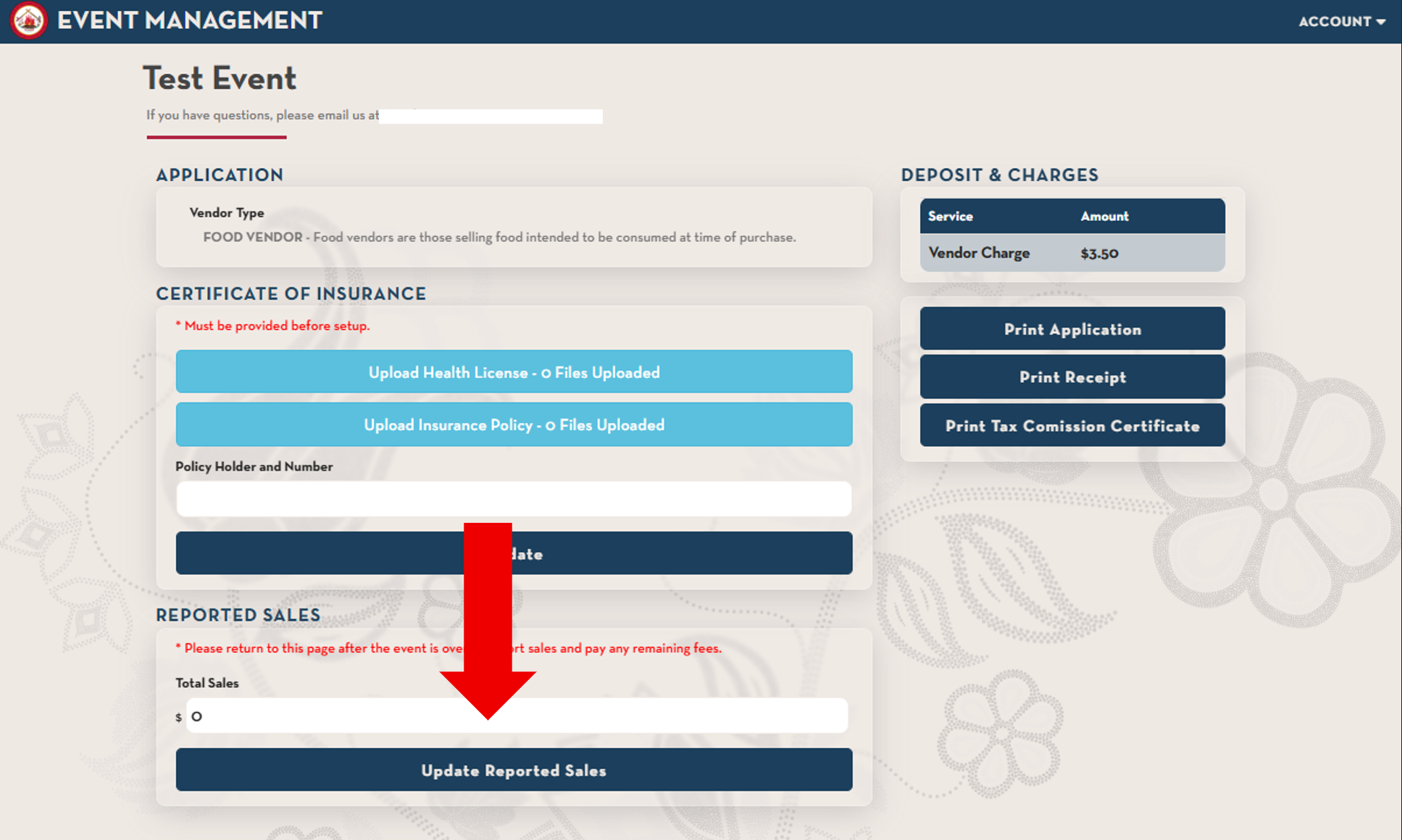
• Type in your total sales in the 'Total Sales' input box.
• Once done make sure to click the 'Update Reported Sales' button below.
• Your sales total will not save until and the payment option will not display until this button is clicked.
• Once done make sure to click the 'Update Reported Sales' button below.
• Your sales total will not save until and the payment option will not display until this button is clicked.
Start Payment Process
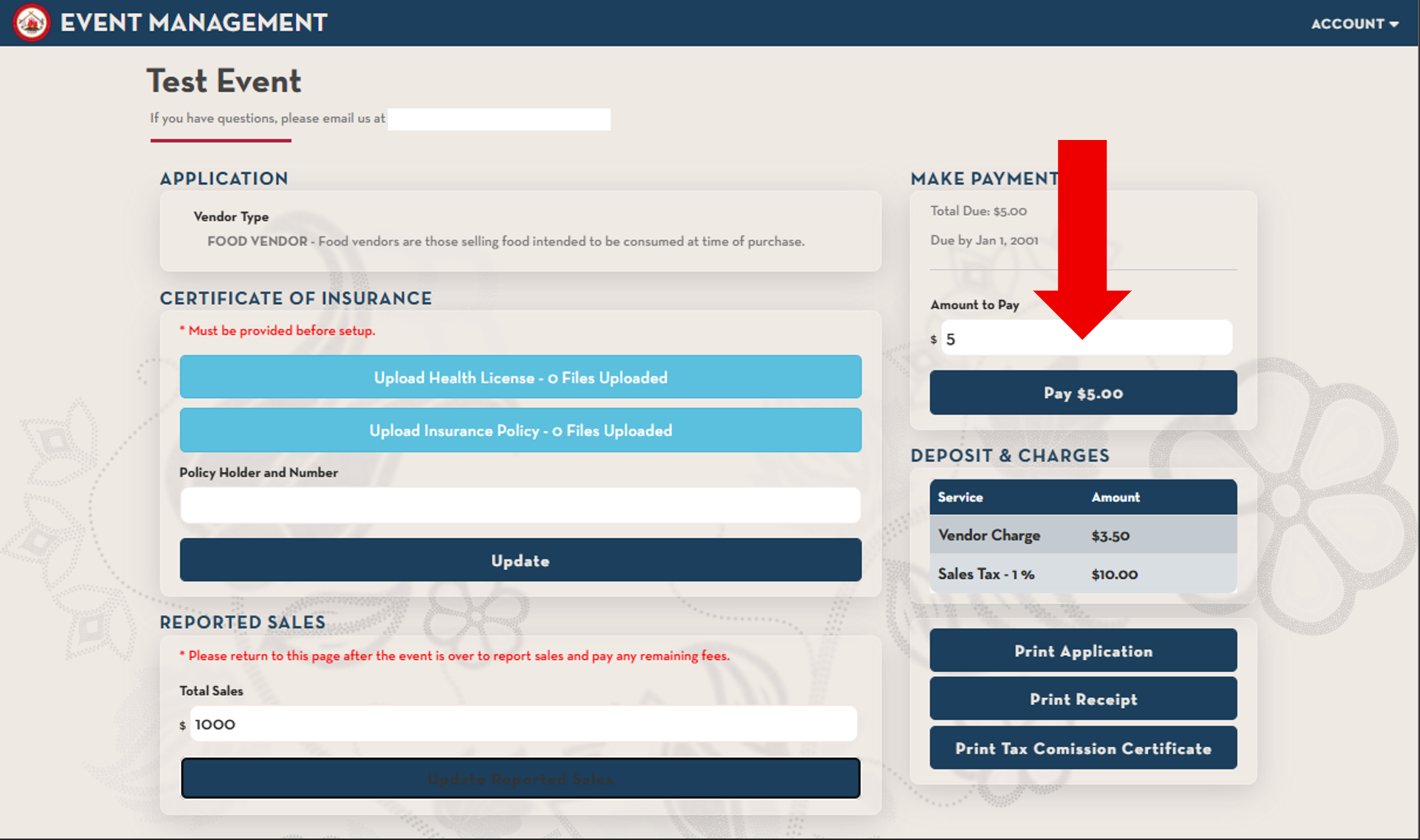
• In the 'Amount to Pay' input box, it will default to the total due.
• You can make a partial payment by lowering this amount.
• Once the amount you want to pay is entered, click the 'Pay' button below this.
• You can make a partial payment by lowering this amount.
• Once the amount you want to pay is entered, click the 'Pay' button below this.
Make Payment
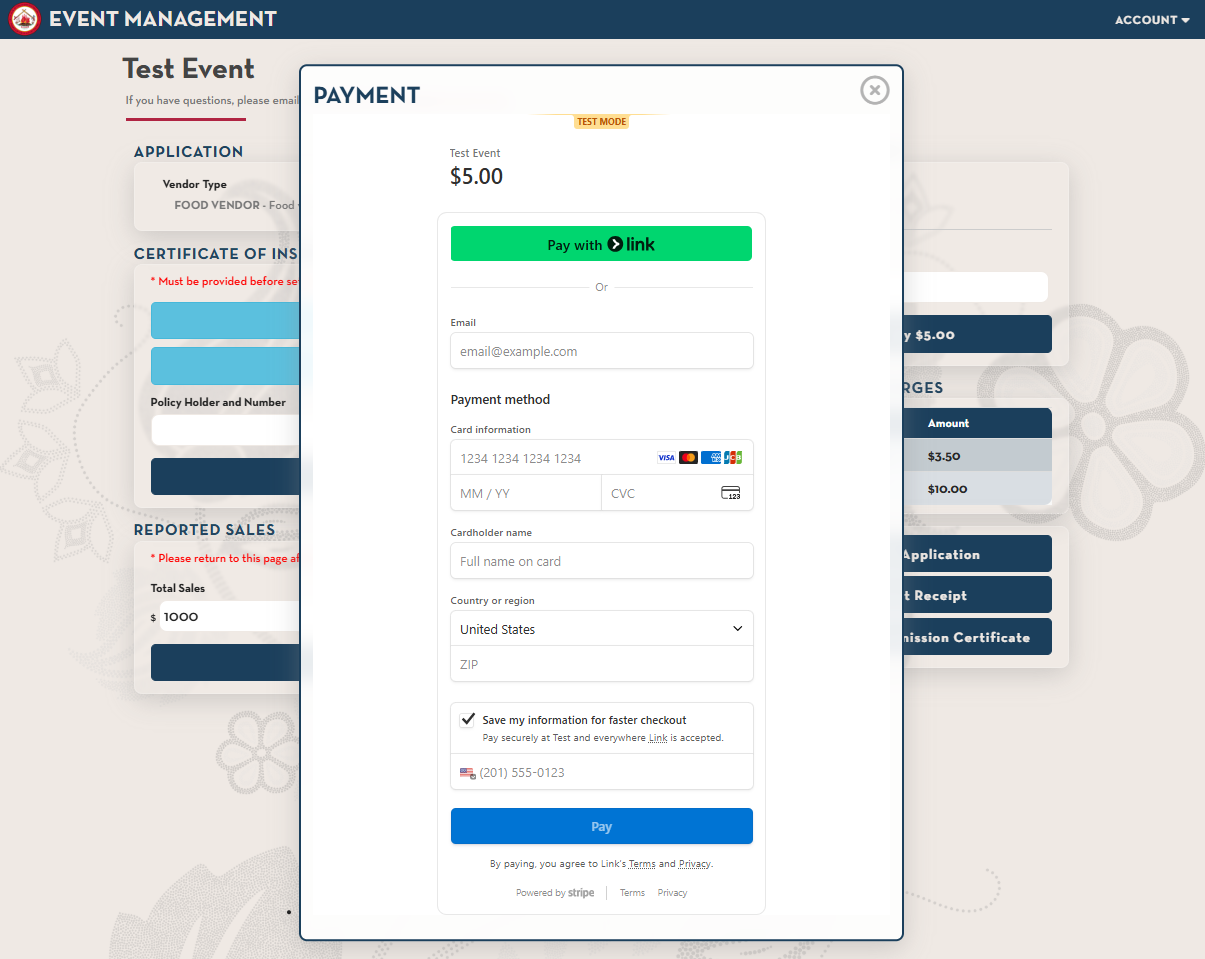
• Fill out the information in this section and click pay.
• The email entered here will be the email you recieve a receipt from Stripe.
• The email entered here will be the email you recieve a receipt from Stripe.