Need to reset your password? These instructions will guide you through the process. Red arrows in the screenshots show you where the section mentioned is located.
Go To 'Forgot Password' Page
• From the login page, click on the 'Forgot Your Password?' text link.
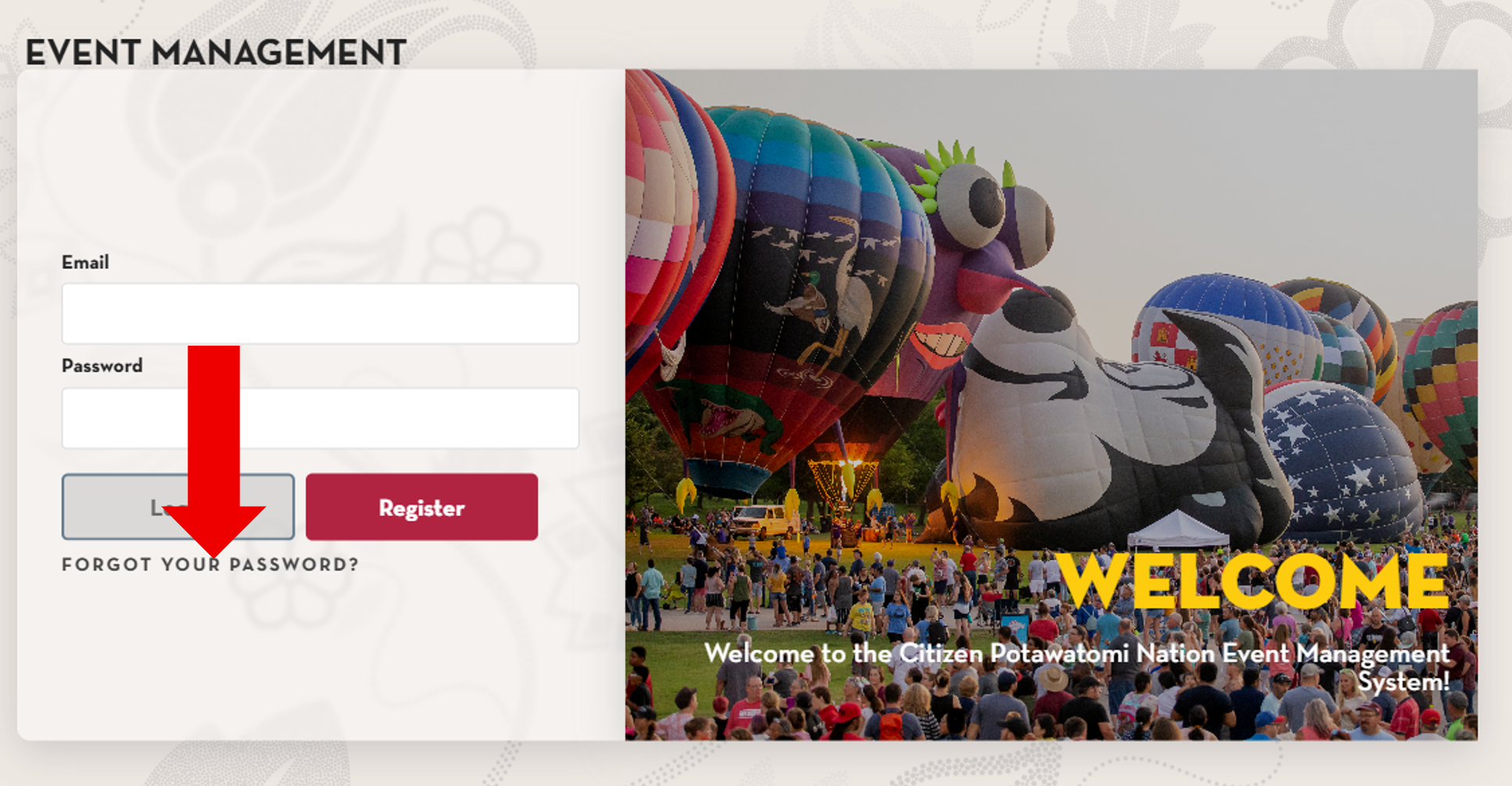
Starting Password Reset Request
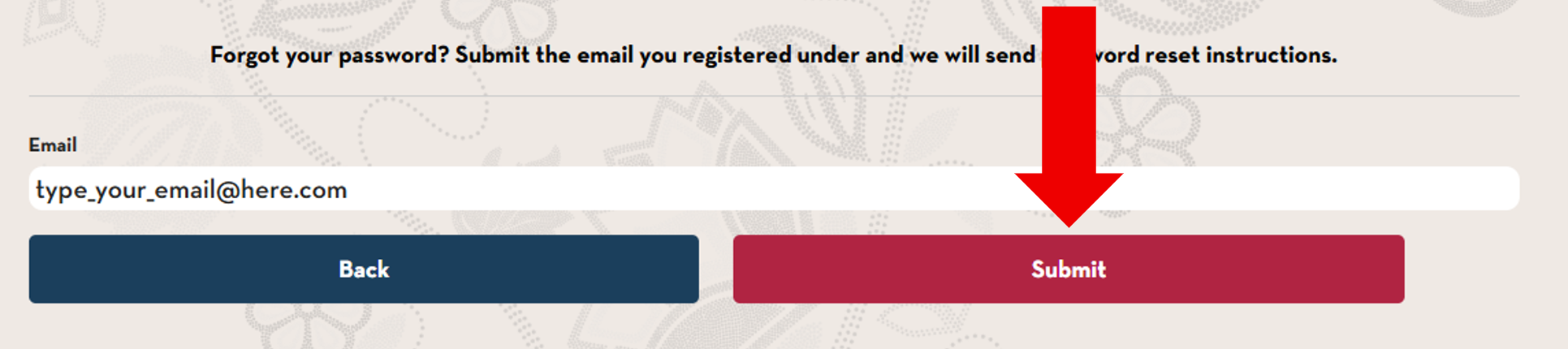
• Type in your email address.
• If you copied it please remove any extra spaces at the end.
• Click the submit button.
• If you copied it please remove any extra spaces at the end.
• Click the submit button.
Request Submitted Succcessfully
• You should see this screen if the submission was successful.
• Check your email for the next step.
• Password reset requests are only valid for 15 minutes. You may need to repeat the above steps if not completed before then.
• Check your email for the next step.
• Password reset requests are only valid for 15 minutes. You may need to repeat the above steps if not completed before then.

Follow Link From Your Email
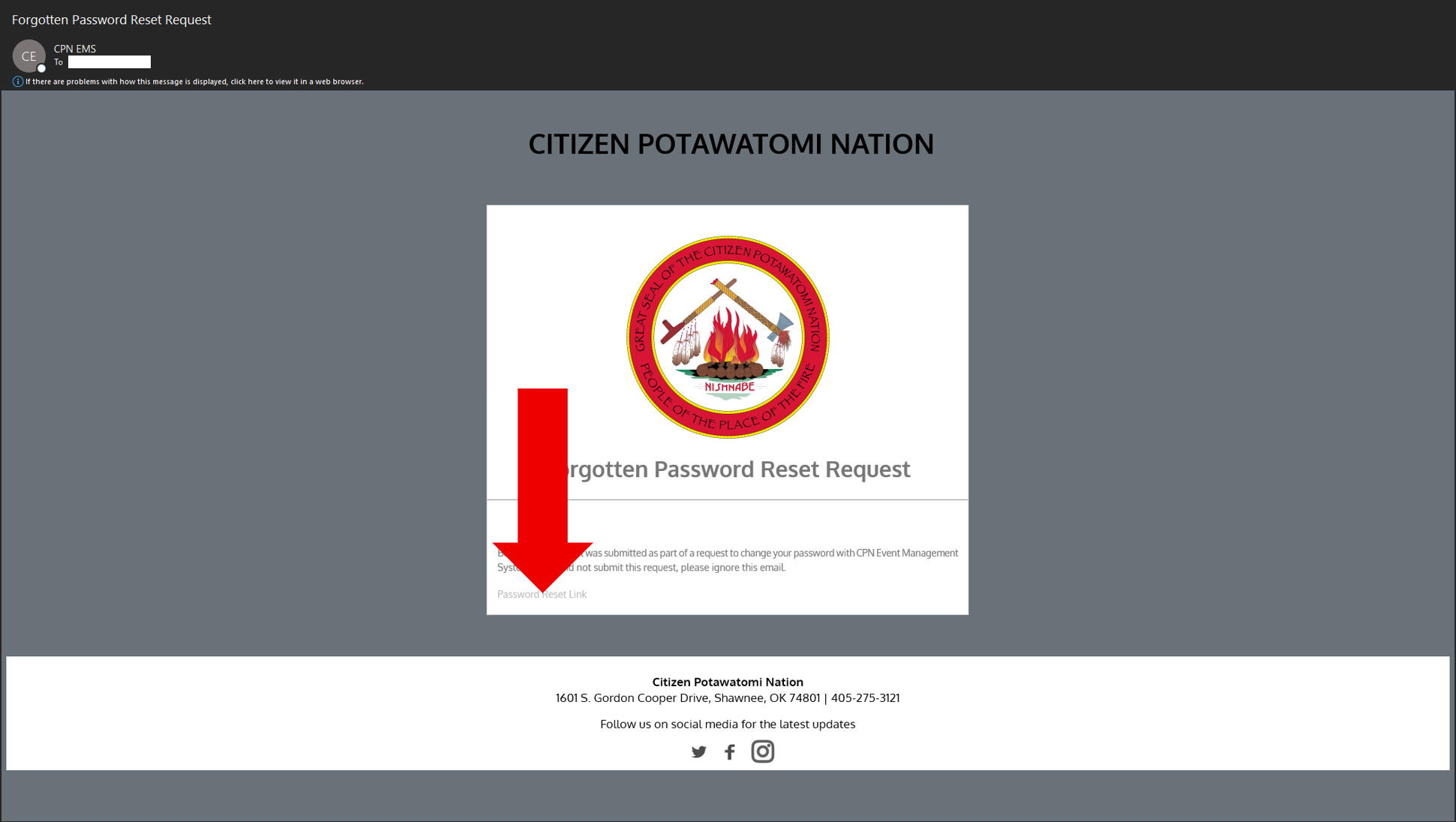
• In the email you recieved, a temporary link to reset your password will be included. Click the 'Password Reset Link' text link.
Submit Your New Password
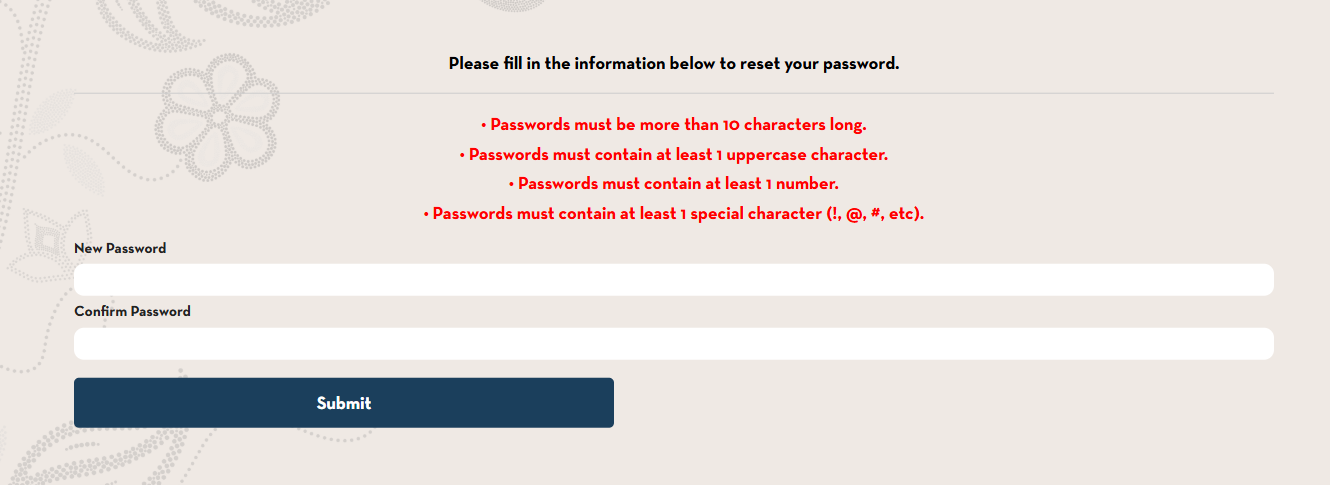
• Type your new password into both the 'New Password' and 'Confirm Password' input boxes.
• If the 'Submit' button is greyed out after entering it in both input boxes, there is a mismatch in what you typed. Retype the password in both input boxes.
• If you submit and see the red text in the screenshot, your password does not meet the minimum requirements. Passwords in EMS need at least 10 characters, 1 uppercase, 1 number, and 1 special character.
• If the 'Submit' button is greyed out after entering it in both input boxes, there is a mismatch in what you typed. Retype the password in both input boxes.
• If you submit and see the red text in the screenshot, your password does not meet the minimum requirements. Passwords in EMS need at least 10 characters, 1 uppercase, 1 number, and 1 special character.
Success!

• You will see this screen if your password was successfully changed. You can go back to the login page and continue with your brand new password!